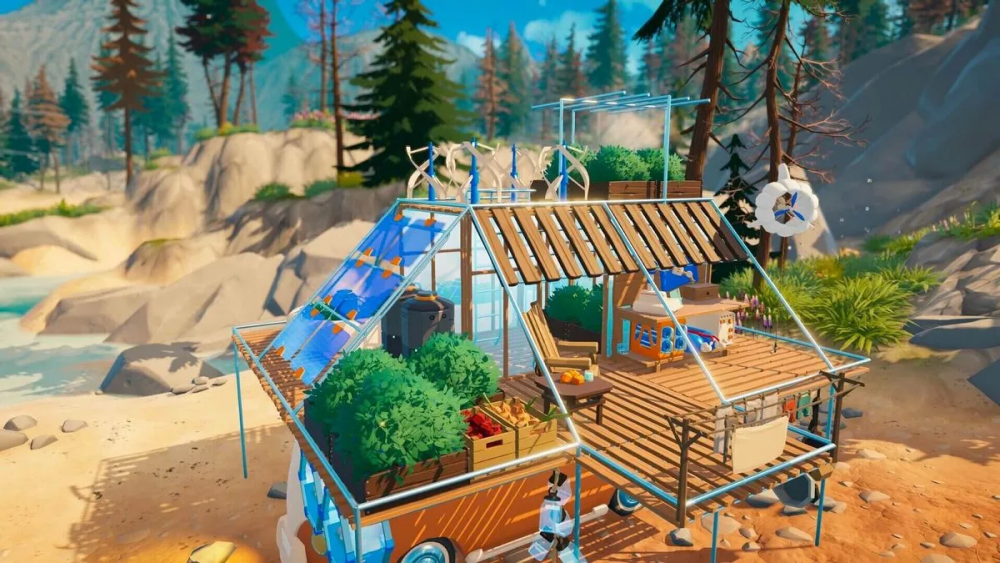
One of the first issues players will run into in Outbound is becoming encumbered almost immediately after collecting too many items. Naturally, you’ll want to store your materials somewhere, but surprisingly, the tutorial doesn’t clearly explain how to deposit items into your van storage.
Here’s a quick guide on how to store your items properly and manage your inventory more efficiently in Outbound.
How to Store Items in Outbound
In Outbound, players begin with a backpack inventory limit of 20 item slots. Stackable items still count individually toward that limit. For example, having stacks of 10 Scrap Metals and 10 Everwood will count as 20 inventory slots instead of just two stacks.
Because of this, inventory management quickly becomes an important part of gameplay, and your van serves as your primary storage solution.
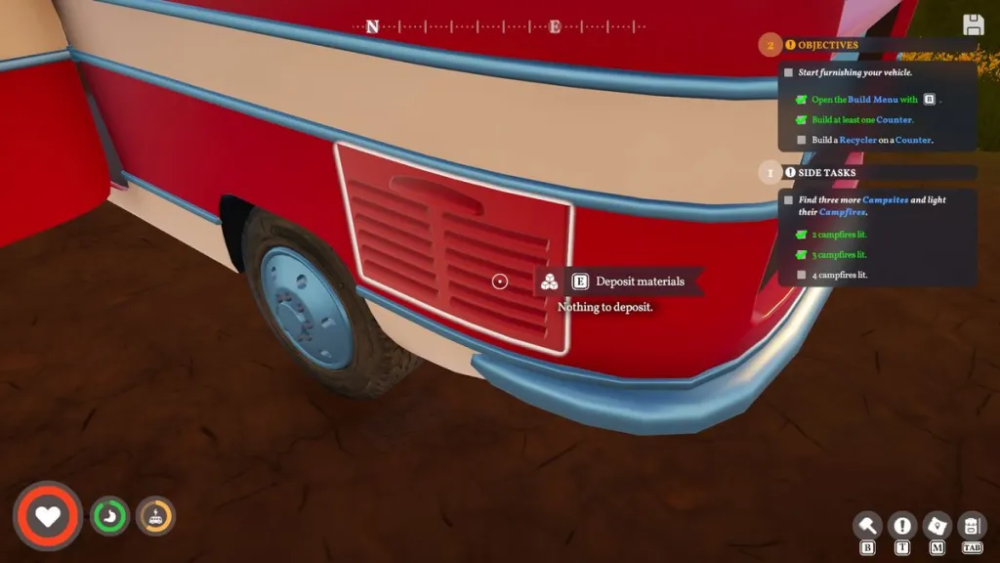
To deposit items and crafting materials, head outside your van and move toward the trunk area near the left rear wheel. There is a hidden storage container located there, but it only becomes highlighted when you look directly at it, making it easy to miss.
Once you interact with the storage container, your backpack materials will automatically be deposited into the van’s storage.
However, there are situations where you may not want every item to be transferred automatically. For example, you may want to keep Download Vouchers with you in case you encounter terminals during exploration, or carry food items for emergencies.
To prevent specific items from being automatically deposited, open your backpack and select the item you want to keep. A small menu will appear with options such as dropping, using, or consuming the item, depending on its type.
In the upper-right corner of this menu, you’ll notice an open padlock icon. Selecting this icon will lock the item, ensuring it always stays in your backpack even when depositing materials into storage.
Another confusing mechanic involves retrieving items from your van’s storage. Interacting with the storage container itself doesn’t directly open the inventory interface.
Instead, look upward toward the mirror above the container. The mirror actually displays the contents of your van’s storage. Hover over the mirror and interact with it to open the storage inventory, where you can transfer items back into your backpack whenever needed.
Finally, it’s generally best not to carry basic crafting resources such as:
- Everwood
- Scrap Metal
- Everwood Planks
- Rocks
- Other crafting materials
Even when these resources are stored in the van instead of your backpack, crafting stations, building menus, and workstations can still automatically access and use them whenever required.